
Last updated:
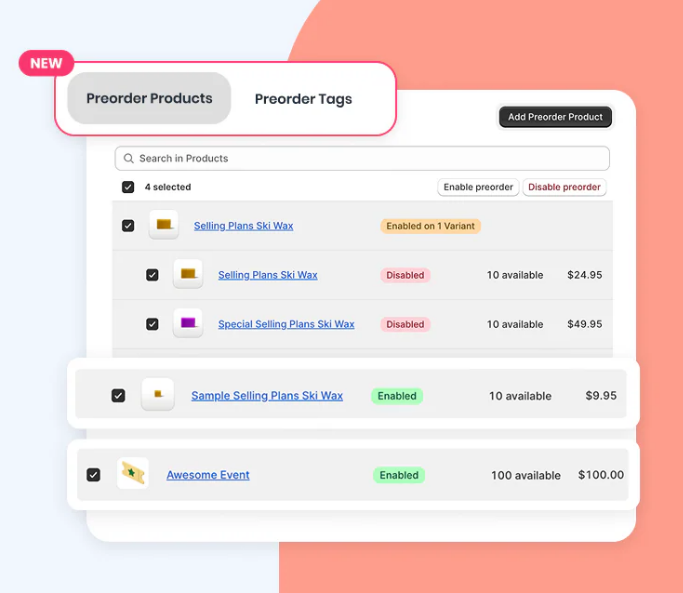
Set Up Pre Order on Shopify (Fast Setup Checklist for 2026)
If you’re launching a new product, running a restock, or selling made-to-order items, you can set up pre order on Shopify using built-in inventory settings — as long as you message it clearly and avoid overselling.
Disclosure: We may earn a commission if you purchase via our links. This helps support BestGrowthApps.
- Enable Shopify’s “continue selling when out of stock” setting
- Add a clear pre-order message customers understand
- Test checkout (desktop + mobile)
- Decide when it’s worth using a dedicated pre-order app
Quick answer: what’s the easiest way to set up pre order on Shopify?
The fastest way is to enable Continue selling when out of stock on the product, then add a clear message like “Pre-order — ships on (date).”
Manual setup: set up pre order on Shopify (without an app)
Step 1: Enable “Continue selling when out of stock”
- Go to Shopify Admin → Products
- Open the product you want to pre-sell
- Under Inventory, enable Continue selling when out of stock
- Save
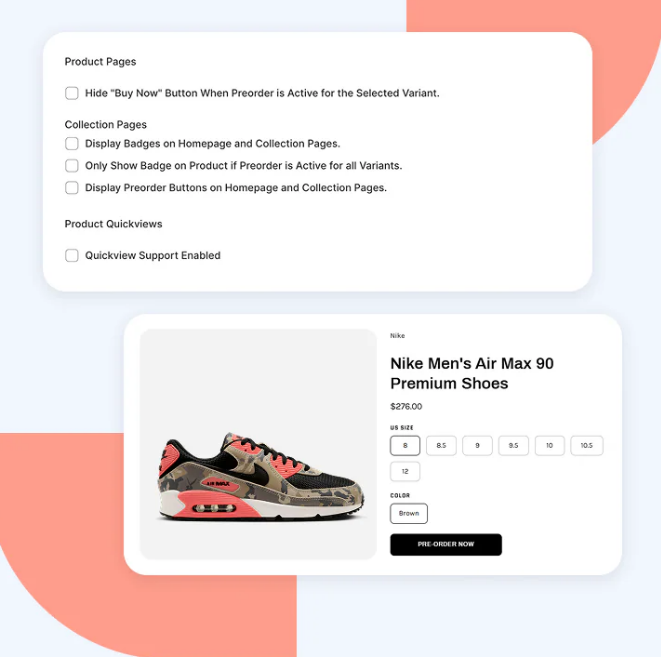
Step 2: Make the product clearly look like a pre-order
Shopify doesn’t automatically label something as a pre-order. You need to make it obvious using:
- Product title (optional): add “Pre-Order”
- Description: add shipping window + what customers should expect
- Theme messaging: add a short note near the Add to cart button
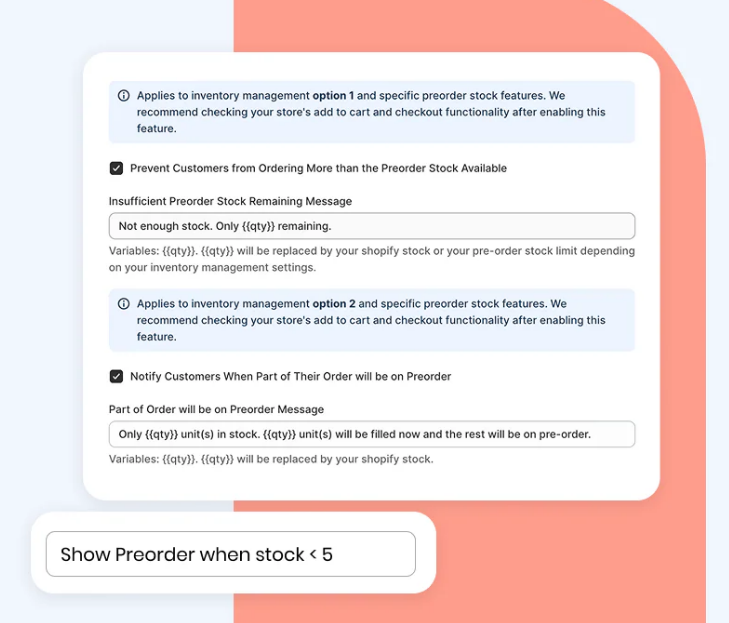
Step 3: Test checkout end-to-end
- Add the product to cart
- Go to checkout
- Confirm the product still appears purchasable
- Confirm your message is visible (or repeated in cart)
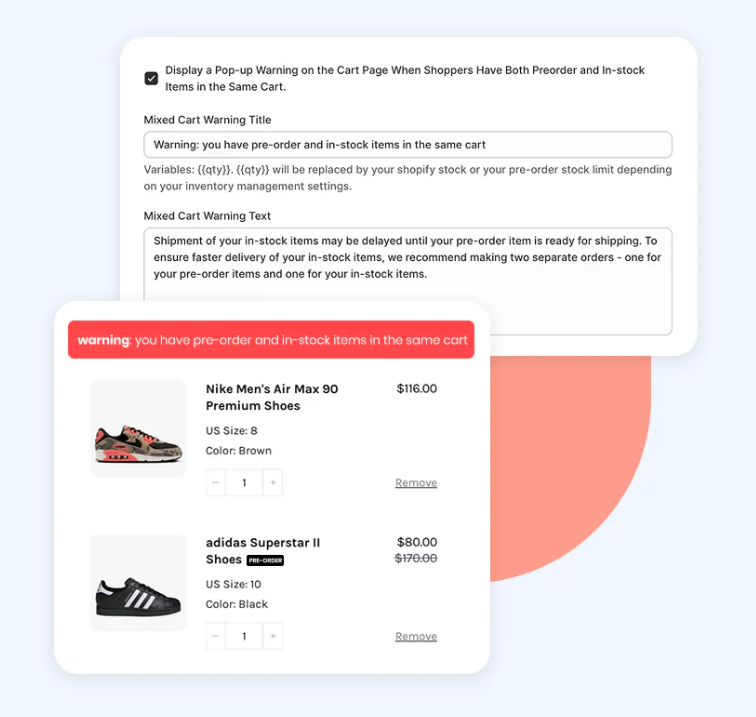
Pre-order messaging checklist (copy/paste templates)
Simple message (best for most stores)
Range message (if ship date is uncertain)
Restock message
How to avoid overselling when you set up pre order on Shopify
The main risk of manual pre-orders is overselling or confusing customers. Here’s how to reduce that:
1) Set a real max quantity (don’t leave it unlimited)
- If you only have 200 units coming in, don’t accept 1,000 pre-orders.
- Use a realistic limit and update it as production changes.
2) Use a shipping window you can actually hit
- Customers are usually okay waiting — they’re not okay being surprised.
- It’s better to underpromise and ship early.
3) Make sure your support team can identify pre-orders
- Use tags like “Pre-Order” in product title or variant name
- Or add a note inside your order confirmation email
Recommended: use a pre-order app when you want a cleaner workflow
If you’re doing pre-orders often (or you want less manual work), a dedicated tool can help you create a cleaner and more consistent pre-order experience.
Recommended
Want a cleaner pre-order flow?
Pre-Order Now helps you manage launches, restocks, and made-to-order items with clearer customer messaging.
Disclosure: We may earn a commission if you make a purchase.
FAQs
Does Shopify allow pre-orders?
Yes — Shopify can support pre-orders using inventory settings like “continue selling when out of stock.” The key is making sure customers clearly understand it’s a pre-order and when it will ship.
Can I set up pre order on Shopify without an app?
Yes. Many stores do it manually by enabling out-of-stock purchasing and adding clear product page messaging. This works well for simple launches, but it can get messy if you run pre-orders frequently.
What’s the biggest mistake when setting up pre-orders?
The biggest issue is unclear messaging. If customers don’t realize they’re buying a pre-order, you’ll get more refunds, chargebacks, and support tickets.
If you run pre-orders regularly, consider using a dedicated tool like Pre-Order Now to reduce confusion and keep your workflow consistent.

Jessa Mariano — Shopify apps writer focused on practical setup guides for merchants.
Methodology: This guide is based on standard Shopify admin settings and common merchant workflows for launches, restocks, and made-to-order products.