
Last updated:
Shopify Pre Order Without App: The Manual Setup (And When It Breaks)
Shopify pre order without app is possible using Shopify’s inventory settings, but it can create confusion if your product page and checkout don’t clearly explain what customers are buying.
This guide shows the manual setup steps, the overselling risks to watch for, and when it’s smarter to use a dedicated tool like Pre-Order Now.
Disclosure: We may earn a commission if you purchase via our links. This helps support BestGrowthApps.
Quick answer: Can you do a Shopify pre order without an app?
Yes. Shopify allows pre-orders by enabling inventory settings like Continue selling when out of stock and adding clear messaging to the product page.
How to set up a Shopify pre order without an app (step-by-step)
This is the most common manual approach. It works best for small launches and occasional pre-orders (not constant drops).
Step 1: Enable inventory tracking
- Shopify Admin → Products
- Select the product (or variant)
- Scroll to Inventory
- Make sure inventory is tracked
Step 2: Enable “Continue selling when out of stock”
- In the Inventory section, check Continue selling when out of stock
- Click Save
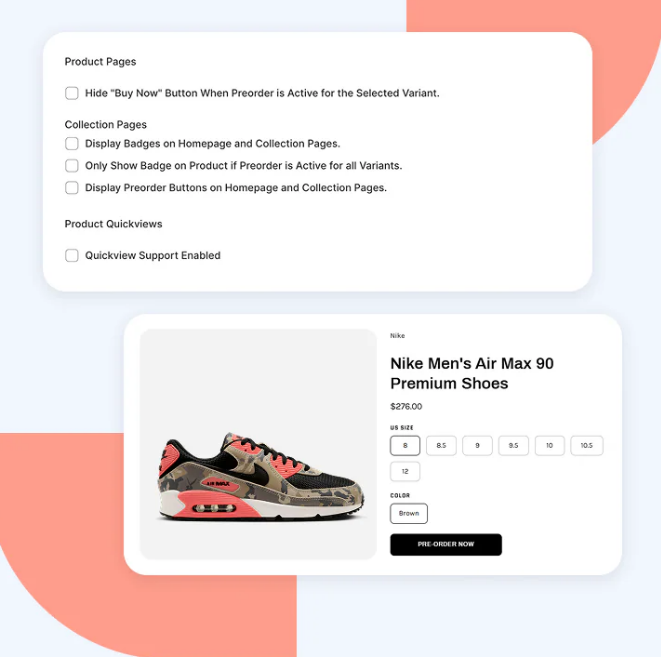
Step 3: Add a clear pre-order message on the product page
Your message should answer these three questions:
- Is this a pre-order? (Say it clearly)
- When will it ship? (Give a ship window)
- How will it ship? (Separate vs combined shipments)
Example pre-order message:
- Pre-order: Ships in 2–3 weeks
- Estimated ship window: Feb 15–20
- Note: Pre-order items ship separately from in-stock items
Step 4: Test checkout (desktop + mobile)
- Open the product in an incognito window
- Add to cart and go through checkout
- Confirm customers can see the pre-order message before paying
- Repeat on mobile (where most customers shop)
Where manual pre-orders break (common issues)
1) Customers don’t notice the pre-order message
If your message is only in the description, some customers will miss it—then request refunds when shipping takes longer than expected.
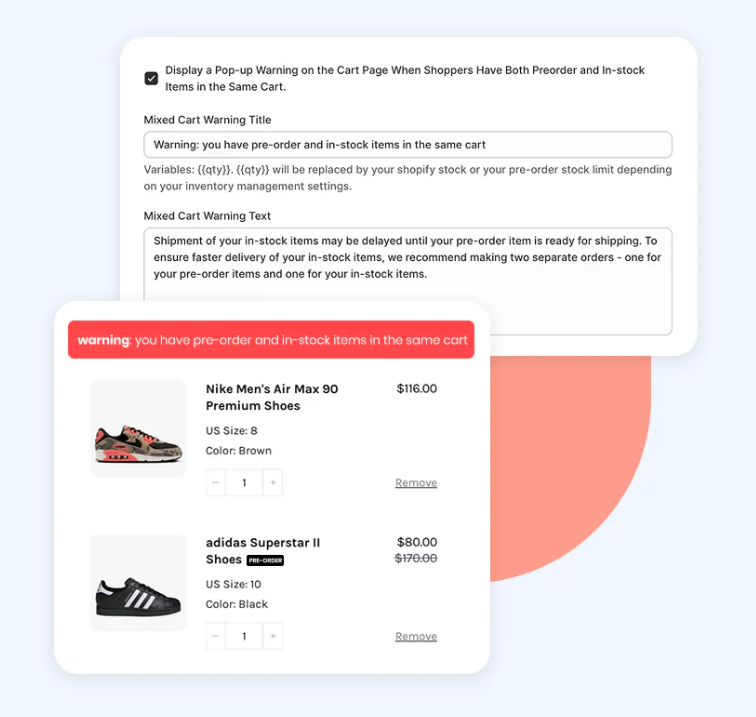
2) Mixed carts cause shipping confusion
If a customer buys an in-stock item plus a pre-order item, they usually expect everything to ship immediately (unless you make the shipping behavior obvious).
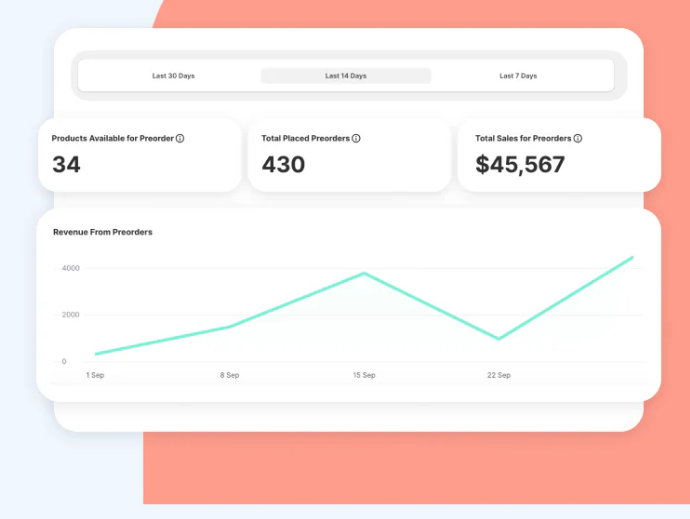
3) Button text still says “Add to cart”
When the button doesn’t indicate a pre-order, customers may not understand what they’re committing to until after checkout.
4) Overselling can happen if you don’t set limits
“Continue selling when out of stock” removes the natural inventory guardrail—meaning customers can keep ordering even if your supplier timeline changes.
How to avoid overselling with manual Shopify pre-orders
1) Use a ship window, not a single date
Instead of “Ships Feb 15,” use “Ships Feb 15–20.” It sets better expectations and reduces angry follow-ups.
2) Limit how long your pre-order stays live
Pre-orders should be a controlled window, not an always-on setting. Close the pre-order once you’ve hit your planned volume.
3) Repeat the pre-order message in more than one place
Best practice is showing messaging:
- Near the product title/price
- Near the button area
- In the cart (if your theme allows)
When it’s smarter to use a pre-order app
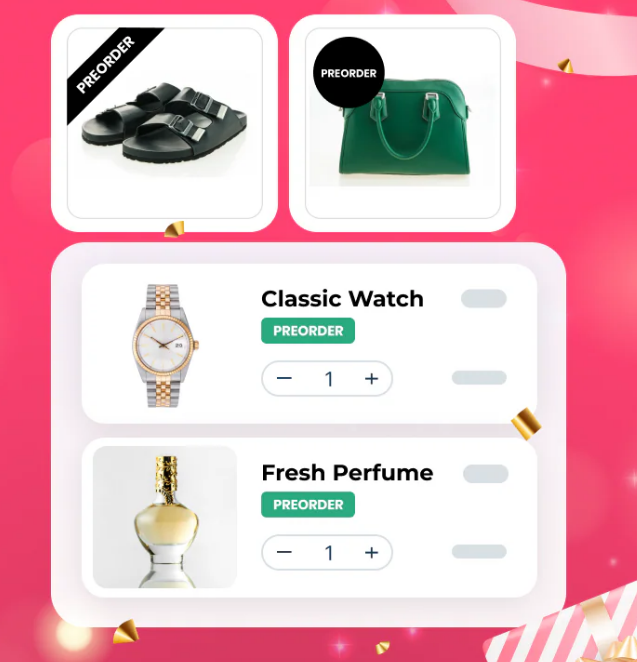
If you run pre-orders regularly, manual setup becomes hard to manage. That’s when a dedicated app can be worth it—mainly for consistency and clarity.
If you want the “money page” comparison and why merchants upgrade, see our hub: Pre Order Now for Shopify pre-orders.
Want a cleaner Shopify pre-order experience?
Pre Order Now is a simple upgrade if you run launches/restocks and want clearer messaging (with less customer confusion).
Try Pre Order Now
RecommendedBest for launches, restocks, and made-to-order items.
Try Try Pre Order Now →Disclosure: We may earn a commission if you make a purchase.
FAQs
Does Shopify allow pre orders without an app?
Yes. Shopify can support pre-orders with inventory settings and clear product messaging. Apps are most helpful when you want a more consistent customer experience across multiple products.
Can you do pre orders on Shopify without overselling?
You can reduce the risk by using a ship window, limiting how long pre-orders stay live, and making the shipping timeline clear before checkout. If you run pre-orders often, a dedicated pre-order workflow can be easier to manage.
What’s the fastest manual pre-order setup?
Track inventory, enable “continue selling when out of stock,” add a clear pre-order ship window, and test checkout on mobile + desktop.

Jessa Mariano — Shopify apps writer focused on practical setup guides for merchants.
Methodology: We write setup guides based on common Shopify workflows and what typically causes customer confusion (and support tickets) during launches and restocks.